About Banquet Preorder
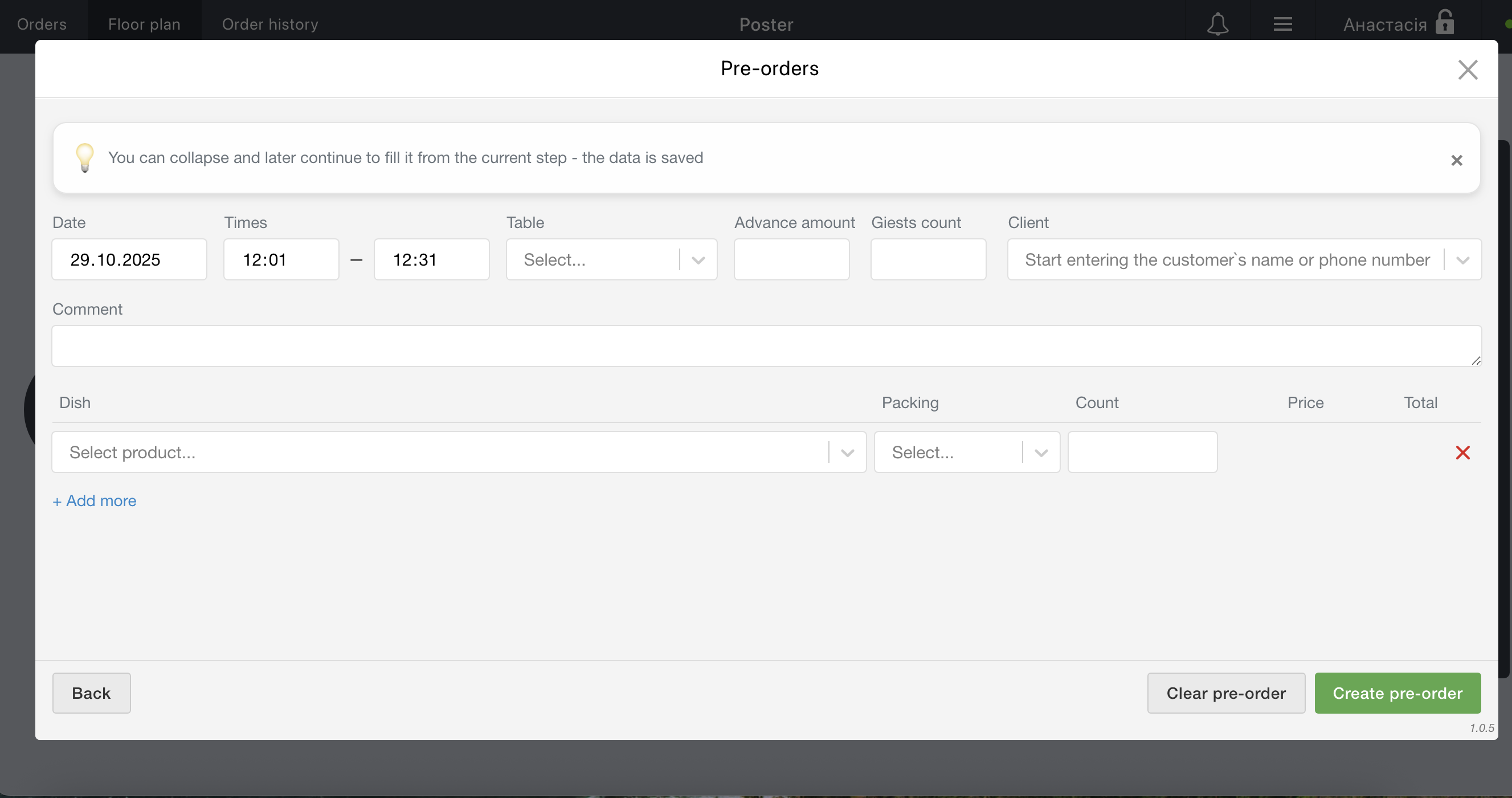
The “Banquet Preorder” app helps you easily manage and process banquet bookings in advance. Now you can schedule events ahead of time — set the banquet date, time, number of guests, deposit amount, table, and even add dishes right from your Poster POS or admin panel.
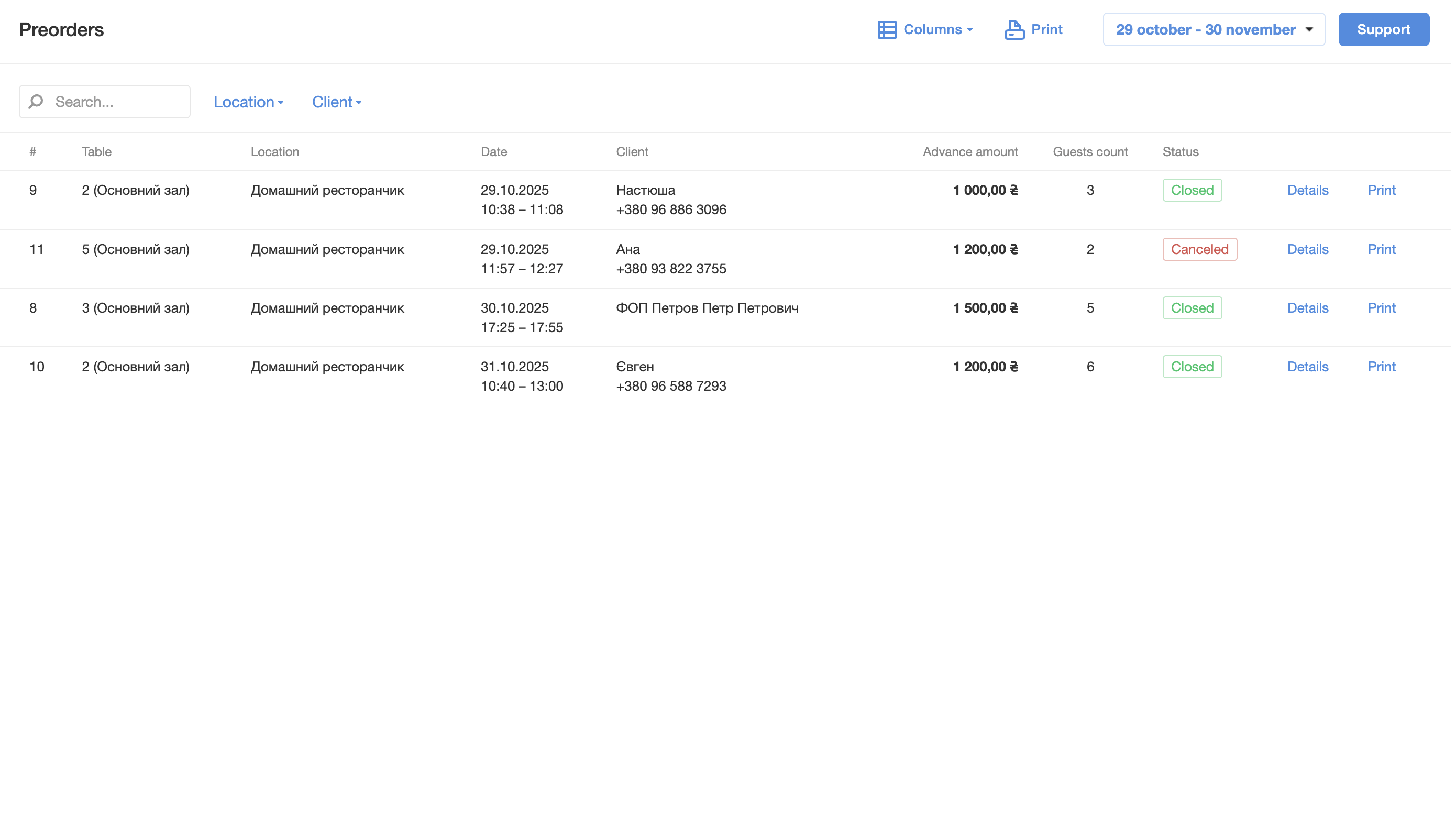
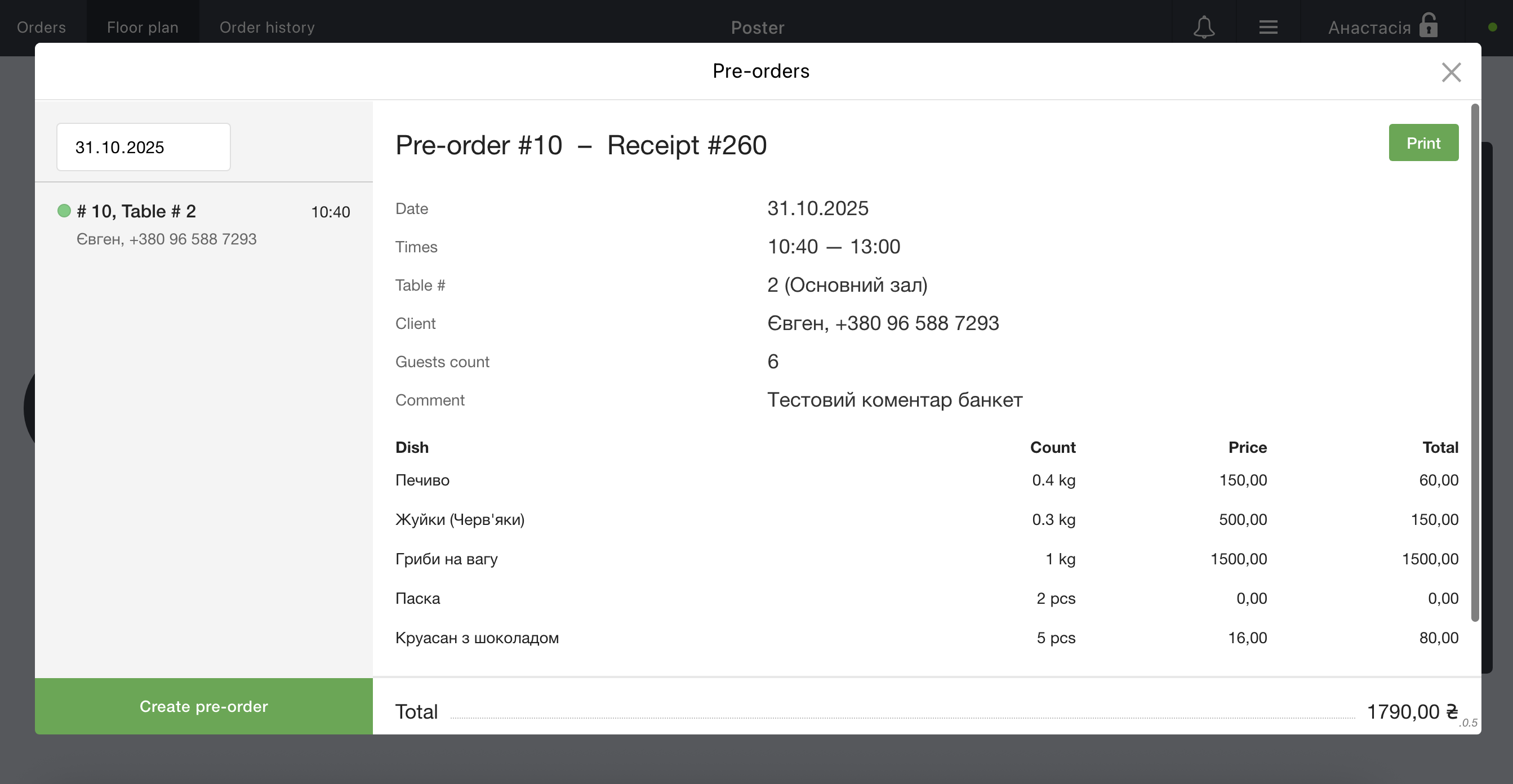
All preorders are saved in a convenient list, where you can quickly find them by date. You can edit, cancel, print, or process preorders — and on the banquet day, your order will appear on the POS, ready for checkout.
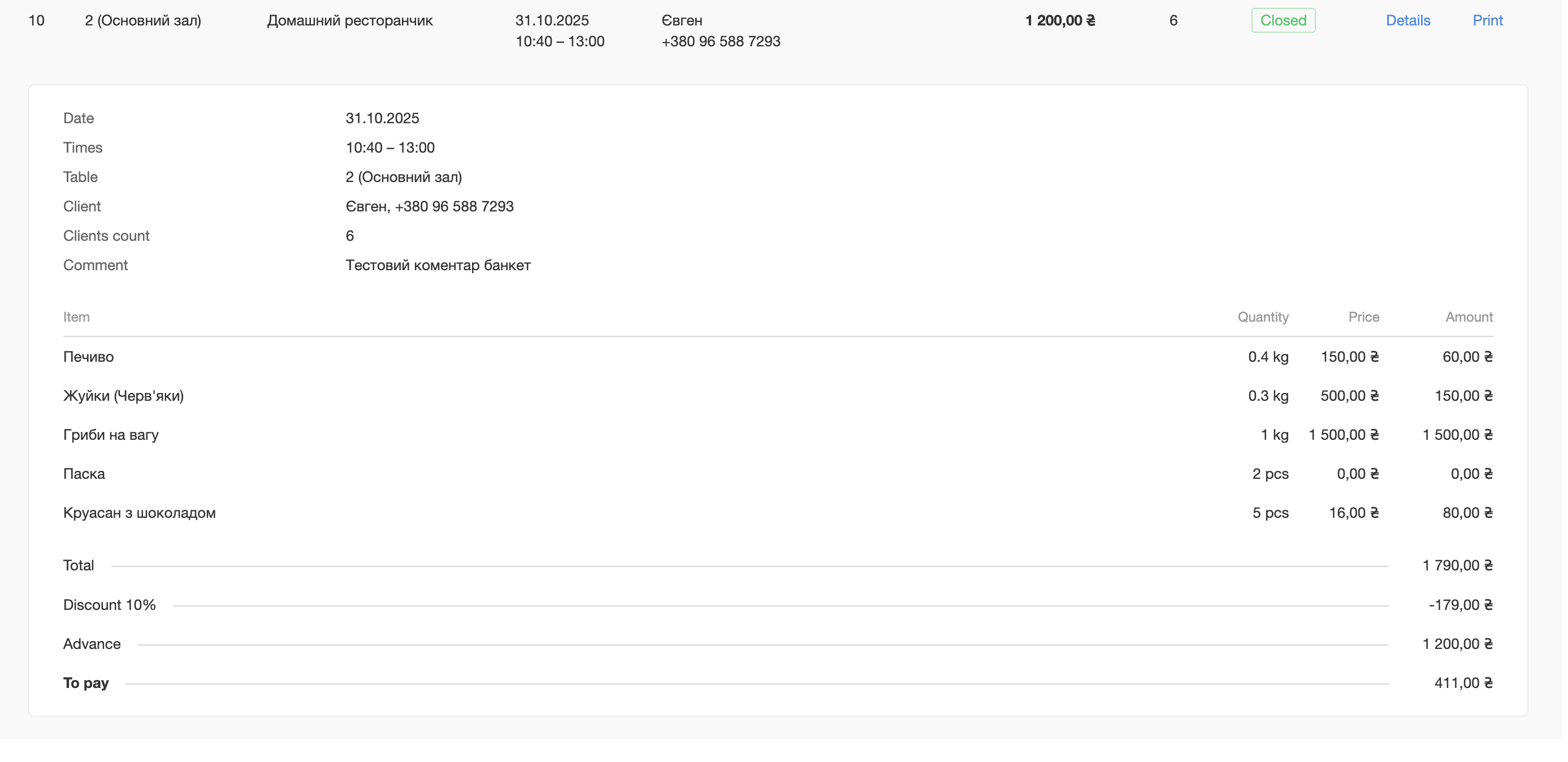
In the admin panel, you can view all banquet details and statuses, track deposits, and print or save banquet sheets as PDF files.
You can even send the PDF file directly to the guest’s email or phone — fast and convenient!
Key Benefits
✔️ Plan Ahead — create banquet orders in advance with date, time, and guest details
✔️ Flexible Management — edit, cancel, or process preorders directly from your POS
✔️ Clear Overview — track all banquet preorders and their statuses in one place
✔️ Guest-Friendly — send banquet confirmations or checks as PDF via email or phone
✔️ Full Control — manage all banquet information from the Poster admin panel
Popular Questions
How do I create a preorder?
You can create a preorder directly from your Poster POS — just set the date, time, table, deposit, and dishes.
Can I edit a preorder after it’s created?
Yes, you can edit or cancel a preorder at any time before the banquet date.
When can I process a preorder?
On the banquet day — the preorder will appear on your POS, allowing you to finalize the payment.
Can I send the check to a guest?
Yes, you can send the banquet PDF file directly to the guest’s phone or email.
How can I find a specific preorder?
Use filters by date in the “Preorders” menu.
Is the advance payment fiscalized within the integration?
No, the advance payment is not fiscalized within the integration. Fiscalization is performed according to your POS settings — the full order amount is fiscalized at the moment of pre-order payment on the same day for which the pre-order was created.
Instruction for connect
About the app
- Category
- Number of installations250+
Screenshots